

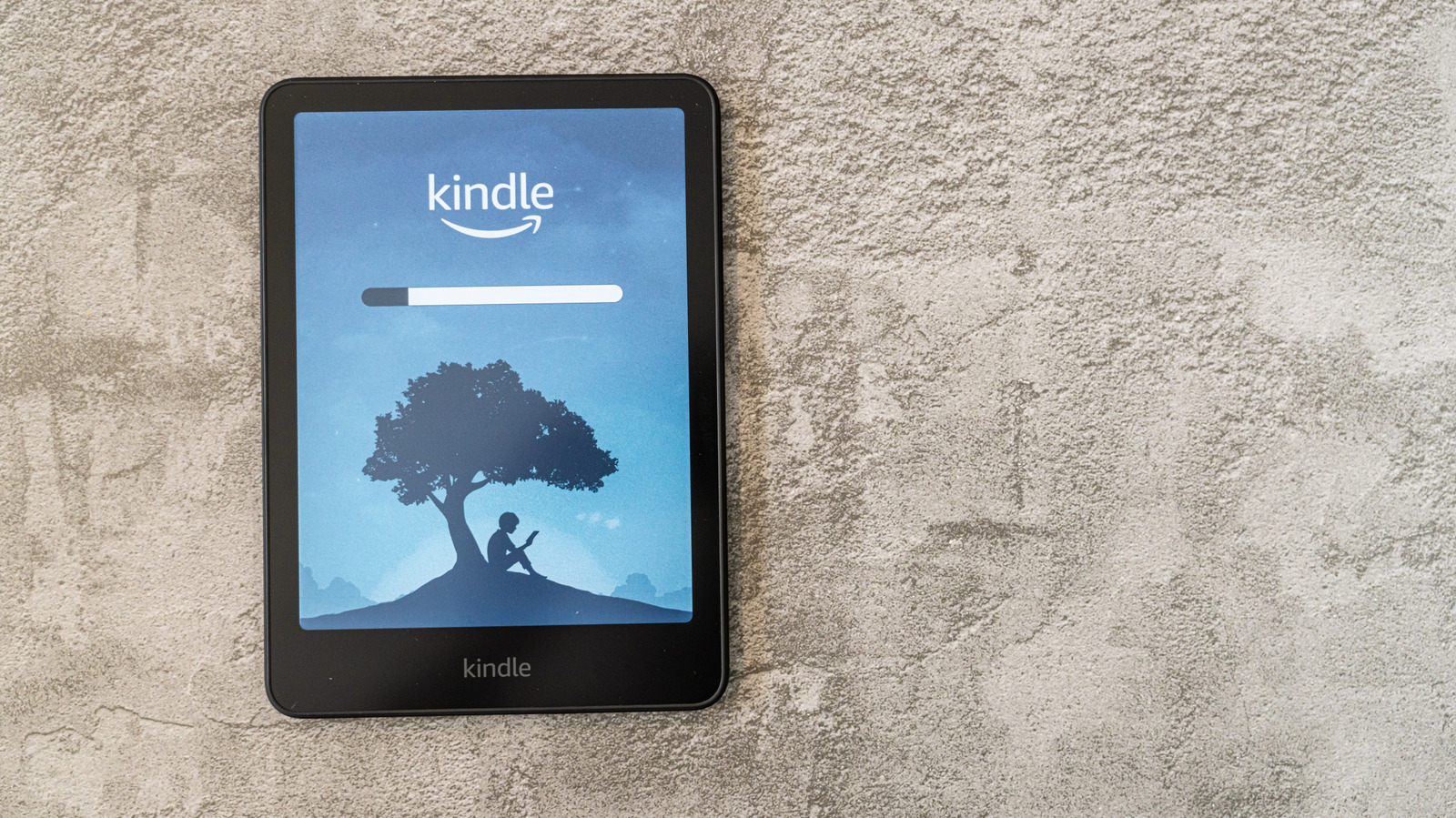
If you already have a Kindle, or have plans to get one, you may want to know which models can do certain things from within the ereader itself. For changing how the Kindle looks and operates on its screen, Amazon offers quite a lot of customization that you may have never even messed around with before.
Buy a cover that resembles a book
A common complaint about digital books is that they are, in fact, digital books. The actual weight and feeling of reading a book that’s in your hands is gone, but if you’re willing to part with some cash, you can change that up pretty easily.
They’re a bit on the pricier side, but there are so many cases online that can make the Kindle look like a book. There are some genuinely charming and beautiful designs, many of which can help evoke the texts of yesteryear that made you fall in love with books to begin with. A quick Amazon search for “Kindle book cover” will get you started.
Change the font
When you have a book open on your Kindle, you have a lot of ways to change how each one looks. Nearly all of them will allow you to change the display to fit a book-style criteria, and one of the easiest ways to do that is by changing the font to something that looks more book-like.
With a book open, look for the Aa symbol at the top. This will allow you to open the settings for that book, and by navigating to Font Family in the Font menu, you can change it to something that feels more appropriate. If you want something that is more traditional and less computer-like, a serif font like Baskerville or Palatino will be a great help.
Alter your layout
Combining landscape mode with a two-column layout, which you can turn on by pressing Aa and navigating to Orientation in the Layout tab, can also help make the Kindle feel more like a book with two pages.
Another way to make the layout of each book feel more natural is to go into settings and change the margins and text weights. By widening the margins, therefore narrowing the way your eyes scan each block of text, you can get your Kindle display to have extra space around the edges of the text in the same way a book does. If you combine this with increasing the weight of the text, essentially giving it a bolder appearance by going into the Font menu, it helps make each passage look more print-like.
Change the brightness and warmth settings
If you have a long history of reading physical books, reading a Kindle may be difficult to get used to at first. One of the reasons it feels less like an actual book is the bright, digital screen that you’re reading it on as opposed to paper. By adjusting the brightness and display output, you can dial in something more nostalgic.
With a book open, tap the top of the screen, and you’ll be given access to the Kindle’s Quick Actions menu. Crushing the brightness a bit and then turning the warmth up helps create something that feels a lot closer to a physical book.
Add page-turn animations
Some of you may not be aware of this, but you can adjust how the book is actually consumed minute to minute by turning on page-turn animations, which help to get you closer to the feel of reading an actual book. These aren’t supported on every single Kindle, mostly being on Amazon’s Colorsoft, Paperwhite and Scribe, as well as mobile versions.
This creates a gentle transition as you tap or swipe between pages. While it doesn’t necessarily recreate the genuine, tactile feel of turning a page, it does help to keep the illusion of reading a book at the forefront of your brain. It can really let you sink into whatever you’re reading.