

The Xbox Series X and Series S were built for speed, with both consoles able to push games at up to 120 frames per second. Pair either one with the right gaming monitor, and you get that speed up close at your desk, along with crisp detail, low input lag, and visuals that keep pace with every flick of the joystick.
Keep reading to find our best monitors for Xbox Series X and Xbox Series S, or browse all ViewSonic gaming monitors now.
Choosing an Xbox monitor comes down to a handful of specs that matter far more than the rest, including resolution, refresh rate, HDMI, and VRR. We’ll walk you through these and share our recommendations.
Key Takeaways
- Both the Xbox Series X and Series S can output 1440p at 120Hz, which makes a 27-inch 1440p monitor with a 120Hz or higher refresh rate the ideal choice for most Xbox players.
- 4K at 120Hz is a Series X feature that requires HDMI 2.1, while 1440p at 120Hz runs over either HDMI 2.0 or 2.1.
- Variable refresh rate (VRR) keeps gameplay smooth when frame rates dip, and Xbox supports it over HDMI on FreeSync-compatible monitors.
- Xbox currently enables HDR only at 4K output, so shoppers choosing a 1440p monitor should prioritize refresh rate, VRR, and response time.
- The ViewSonic XG2735-2K is our pick for the best gaming monitor for Xbox Series X, and the VX2758A-2K-PRO-4 is our pick for Series S.
Resolution and Refresh Rate for Xbox
Resolution decides how sharp your games look, while refresh rate decides how smooth they feel. Each Xbox model handles these a little differently, so it helps to know what your console can actually send to the screen.
1440p vs 4K
The Xbox Series X targets 4K resolution and can reach up to 120 frames per second in supported games. The Series S is built around 1440p, with most titles rendering at or below that resolution. Both consoles can output a native 1440p signal, a big plus for anyone shopping for a monitor.
For most players, 1440p hits the sweet spot. On a 27-inch screen, it works out to around 109 pixels per inch, which looks sharp at typical desk distances. High-refresh 1440p monitors for Xbox Series X are also easy to find at reasonable prices. And many Series X games already run below 4K in their 120fps performance modes.
That said, 4K monitors for Xbox Series X make sense if you favor cinematic single-player games in quality modes, or if you want a screen of 32 inches or more. Keep in mind that 4K at 120Hz requires HDMI 2.1 on both the console and the monitor. If that sounds like your style, take a look at ViewSonic’s 4K monitors.
Series S owners will find that a 1440p monitor for Xbox Series S matches the console’s strengths perfectly. A 4K panel adds cost without much payoff here, since the Series S rarely renders games anywhere near 4K.
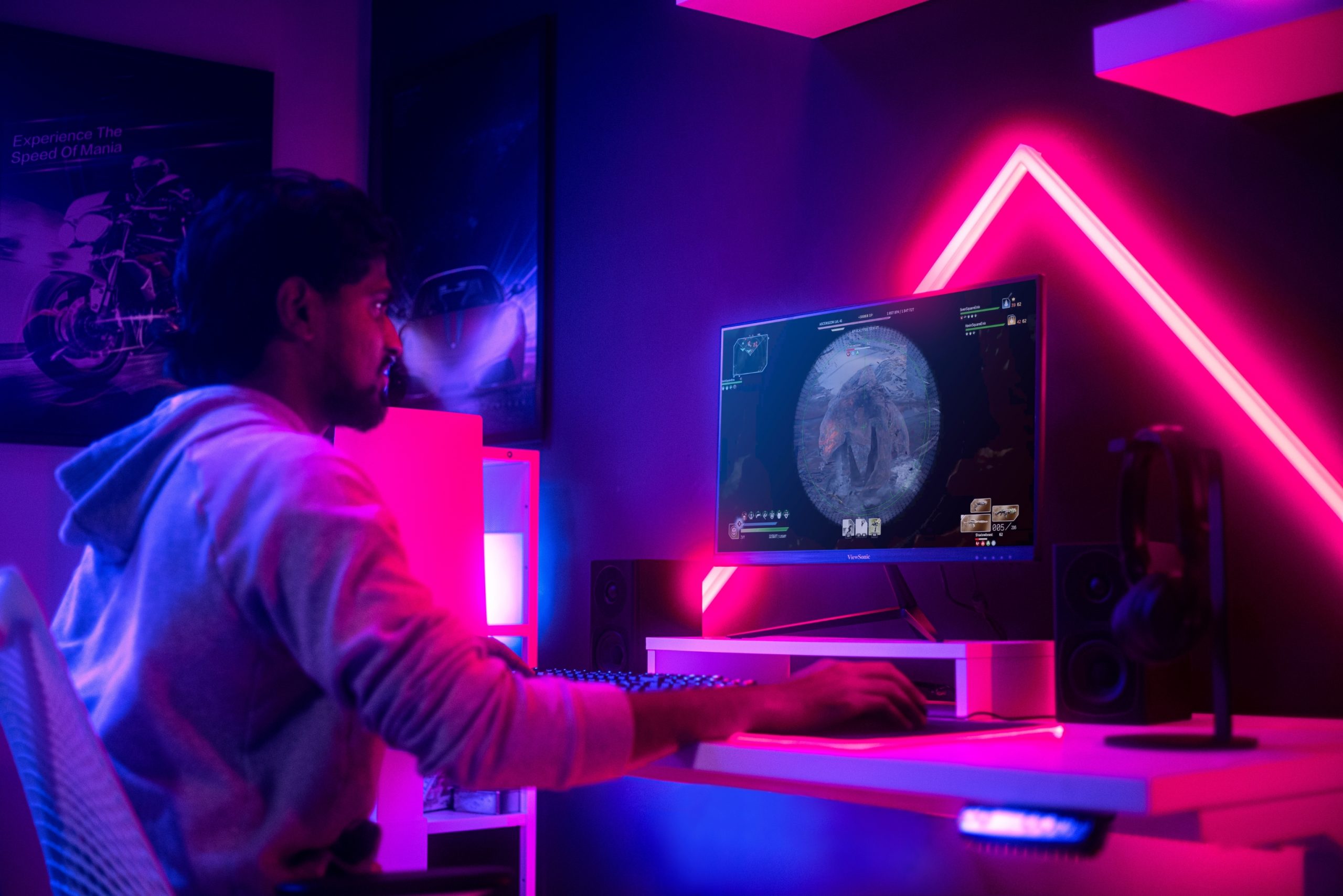
60Hz vs 120Hz
Refresh rate is how many times per second your monitor redraws the image. A 60Hz screen refreshes 60 times each second, while 120Hz doubles that, so motion looks smoother and the game reacts faster to your inputs.
Both the Series X and Series S support output at up to 120Hz, and plenty of games offer 120fps modes, especially competitive shooters and racing titles. A 60Hz display caps you at half that, which is why a 120Hz monitor for Xbox Series X or Series S ranks among the most worthwhile upgrades you can make.
High refresh rate monitors, or monitors rated above 120Hz, such as 144Hz or 180Hz models, pair well with Xbox too. The console still runs at 120Hz, but the extra headroom pays off if you also game on a PC. Once you’re connected, open Settings > General > TV & display options on your Xbox and set the refresh rate to 120Hz.
HDMI
Xbox consoles connect over HDMI only, so the HDMI version on your monitor determines which resolution and refresh rate combinations you can use:
- HDMI 2.0: Supports 1440p at 120Hz and 4K at 60Hz, which covers everything the Series S needs.
- HDMI 2.1: Adds the bandwidth for 4K at 120Hz, the top setting on the Series X.
For the best results, connect your console with the HDMI cable that came in the box. It’s also worth confirming that a monitor supports 1440p at 120Hz over HDMI specifically, since not every high-refresh monitor offers that mode to consoles. Check out our console compatibility list to take the guesswork out of it.
Gaming Performance and Picture Quality
With resolution and refresh rate sorted, a few more monitor specs shape how your Xbox games look and feel in motion.
VRR Support
Variable refresh rate (VRR) lets your monitor match its refresh rate to the frame rate your Xbox produces, moment by moment. When a hectic scene drops the frame rate from 120fps to 90fps, the monitor follows along instead of showing torn or stuttering frames.
Xbox supports VRR over HDMI 2.1, and it also works over HDMI 2.0 with AMD FreeSync-compatible monitors. To switch it on, go to Settings > General > TV & display options > Video modes and check “Allow variable refresh rate.” It’s one of the simplest ways to keep gameplay fluid in titles that can’t hold a locked frame rate.
Response Time and Input Lag
These two specs often get lumped together, but they measure different things. Response time is how quickly pixels change color, usually listed in milliseconds as GtG (gray-to-gray) or MPRT (moving picture response time). Lower numbers mean less ghosting and blur trailing behind moving objects.
Input lag is the delay between pressing a button and seeing the result on screen. Gaming monitors are designed with low latency in mind, giving you a snappy, responsive feel that shines in shooters and fighting games. For crisp motion, look for a response time of 1ms MPRT or lower.

HDR and Contrast
High dynamic range (HDR) widens the gap between bright highlights and dark shadows, adding depth and punch to supported content. Because HDR performance varies widely, you’ll want to check for certifications. HDR10 confirms a monitor can accept HDR signals, while VESA DisplayHDR 400 sets minimum standards for brightness and color.
There’s one Xbox-specific detail worth knowing. The console currently enables HDR only when it outputs at 4K, so a 1440p monitor running at native resolution shows games in standard dynamic range (SDR). That makes strong SDR color and contrast especially valuable on 1440p setups, and it’s another reason refresh rate and VRR deserve top priority.
Contrast ratio describes how deep blacks look next to bright whites. IPS panels typically land around 1,000:1, VA panels go higher, and OLED reaches effectively infinite contrast thanks to pixels that switch off completely.
Choosing the Right Xbox Monitor
Performance specs tell you what a monitor can do. The final step is finding one that fits your space and the way you play.
Screen Size
For desk setups, 27 inches is the go-to size for 1440p. It offers an immersive view without making you turn your head to follow the action. A 24-inch monitor suits 1080p and tighter desks, while 32 inches and up pairs best with 4K, where the extra pixels keep a larger image looking sharp.
Sitting about an arm’s length from a 27-inch screen strikes a comfortable balance between immersion and clarity.

Panel Type
The panel type shapes a monitor’s color, contrast, and viewing angles:
- IPS: Delivers vibrant, accurate colors and wide viewing angles, making it a strong all-rounder for Xbox gaming.
- VA: Offers higher contrast for deeper blacks, which suits dark, atmospheric games.
- TN: Known for speed and affordability, though its colors and viewing angles are more limited.
- OLED: Brings self-lit pixels, near-instant response, and effectively infinite contrast at a premium price.
Many Xbox players find IPS offers the best mix of color, clarity, and speed.
Flat vs. Curved
Curved monitors wrap the image around your field of view, an effect that works especially well on ultrawide and larger screens. Xbox consoles output in a 16:9 aspect ratio, though, so an ultrawide monitor will show black bars on either side during console play.
At 27 inches, a flat 16:9 monitor fills your vision nicely and slots onto any desk. Curved models become more appealing at 32 inches and above, or if you also play PC games that support wider aspect ratios.
Best ViewSonic Gaming Monitors for Xbox
Both of our picks are 27-inch 1440p monitors with SuperClear® IPS panels, 1ms MPRT response times, and VRR that works with Xbox over HDMI. Here’s what sets each one apart.*
| ViewSonic XG2735-2K | ViewSonic VX2758A-2K-PRO-4 | |
|---|---|---|
| Best for | Xbox Series X | Xbox Series S |
| Screen size | 27″ | 27″ |
| Resolution | 2560 x 1440 (QHD) | 2560 x 1440 (QHD) |
| Panel | SuperClear® IPS | SuperClear® IPS |
| Refresh rate on Xbox | 120Hz (HDMI) | 120Hz (HDMI) |
| Max refresh rate on PC | 210Hz (DisplayPort) | 180Hz (DisplayPort) |
| Response time | 1ms MPRT | 1ms MPRT |
| VRR on Xbox | Yes | Yes |
| Adaptive sync | NVIDIA G-Sync Compatible | AMD FreeSync, NVIDIA G-Sync Compatible |
| Brightness | 400 nits | 300 nits |
| HDR | VESA HDR400 | HDR10 |
| Colors | 1.07 billion | 16.7 million |
| Inputs | 2x HDMI 2.1, 1x DisplayPort 1.4 | 2x HDMI 2.1, 1x DisplayPort 1.4 |
| Stand | Height, tilt, swivel, pivot | Height, tilt, swivel, pivot |
*Monitor specs mentioned here are for reference only. Please visit the product pages for more information.
ViewSonic XG2735-2K

If you’re after the best gaming monitor for Xbox Series X, the XG2735-2K delivers bright, richly colored visuals that bring console games to life. Its SuperClear® IPS panel renders vivid, lifelike colors across 178-degree viewing angles, backed by support for 1.07 billion colors and 400 nits of brightness. VESA HDR400 certification adds a bonus for HDR gaming and video on PC.
On Xbox, it runs 1440p at 120Hz through either of its two HDMI 2.1 ports, with VRR support to keep frame pacing smooth. Connect a gaming PC to the DisplayPort 1.4 input, and the refresh rate climbs to 210Hz. Meanwhile, a 1ms MPRT response time keeps fast motion crisp with minimal ghosting. ViewSonic engineered the XG2735-2K for PS5, Xbox, and Switch 2 compatibility, so it fits right into multi-console setups too.
Comfort gets plenty of attention as well. The stand adjusts for height, tilt, swivel, and pivot, while Eye ProTech’s flicker-free and low blue light technology helps keep your eyes fresh through long sessions.
ViewSonic VX2758A-2K-PRO-4

The VX2758A-2K-PRO-4 is built to get the most out of a Series S. Its QHD resolution lines up with the console’s 1440p focus, and it runs 1440p at 120Hz on Xbox over HDMI. Thanks to AMD FreeSync and NVIDIA G-Sync Compatible technology, VRR works with both the Series S and Series X to cut screen tearing and stutter.
Color is another strength. The SuperClear® IPS panel covers 95% of the DCI-P3 color space for rich, true-to-life hues from every angle, and HDR10 support adds depth to HDR content. Fast-paced action stays clean at 1ms MPRT, and ViewSonic’s ViewMode presets let you switch between picture settings optimized for gaming, movies, and more.
Two HDMI 2.1 ports let you connect a second console or streaming device alongside your Xbox, and the DisplayPort 1.4 input pushes the refresh rate to 180Hz on PC. Add a stand with 150mm of height adjustment, tilt, swivel, and pivot, plus Eye ProTech flicker-free and blue light filter technology, and you have a well-rounded monitor built for marathon sessions.
Explore the VX2758A-2K-PRO-4 now.
Final Thoughts
The best monitor for Xbox Series X or Series S is one that matches what your console can actually deliver. For most players, that means a 27-inch 1440p display with a refresh rate of 120Hz or higher, VRR support, and a fast response time. Series X owners chasing 4K at 120Hz should look for HDMI 2.1 and a larger screen, while Series S players get the most from a sharp, speedy 1440p panel.
Whichever console sits on your desk, the ViewSonic XG2735-2K and VX2758A-2K-PRO-4 bring smooth 120Hz gameplay and vibrant IPS visuals to every session. Explore ViewSonic’s full range of gaming monitors to find the right match for your setup.
Frequently Asked Questions About Xbox Gaming Monitors
Yes, you can use a computer monitor with an Xbox Series X or Series S as long as it has an HDMI input, which is the only video connection Xbox consoles use. Gaming monitors bring real benefits to desk setups, including low input lag, high refresh rates, and native 1440p support, a resolution Xbox can output directly. ViewSonic gaming monitors like the XG2735-2K and VX2758A-2K-PRO-4 include two HDMI ports, so your Xbox can share the screen with another console or device.
The best monitor for Xbox Series X is a 27-inch 1440p display with a 120Hz or higher refresh rate and VRR, or a 4K HDMI 2.1 monitor if you want 4K at 120Hz. For most players, 1440p strikes the right balance of sharpness and speed at typical desk distances, and it lets the console run at 120Hz in supported games. The ViewSonic XG2735-2K fits the bill, with 1440p at 120Hz on Xbox, VRR support, two HDMI 2.1 ports, and 400 nits of brightness.
The best monitor for Xbox Series S is a 27-inch 1440p display with at least a 120Hz refresh rate and VRR, matching the console’s focus on 1440p gaming at up to 120fps. An IPS panel adds vibrant colors and wide viewing angles on top of that. The ViewSonic VX2758A-2K-PRO-4 checks every box, with 1440p at 120Hz on Xbox, FreeSync-based VRR, a 1ms MPRT response time, and 95% DCI-P3 color coverage.
No, you don’t need an HDMI 2.1 monitor for Xbox Series S, because HDMI 2.0 provides enough bandwidth for the console’s 1440p at 120Hz output. VRR also works over HDMI 2.0 on FreeSync-compatible monitors. HDMI 2.1 only becomes essential for 4K at 120Hz on the Series X, though it’s a handy bonus if you plan to upgrade consoles later. Both ViewSonic picks in this guide, the XG2735-2K and VX2758A-2K-PRO-4, include two HDMI 2.1 ports.
1440p is the best resolution for an Xbox Series S monitor, since the console targets 1440p in most games and can output a native 1440p signal at up to 120Hz. A 1080p monitor works too but gives up some sharpness, while a 4K monitor adds cost without much visual gain because the Series S rarely renders near 4K. A 27-inch 1440p monitor like the ViewSonic VX2758A-2K-PRO-4 is an ideal match.
Xbox, Xbox Series X, and Xbox Series S are trademarks of the Microsoft group of companies. All other trademarks are the property of their respective owners. References to third-party products and technologies are for informational purposes only and do not imply endorsement by, sponsorship by, or affiliation with their owners.