

Thunderbolt monitors don’t just connect your devices, they elevate your entire workflow. With blazing-fast file transfers, you can keep your momentum going strong, free from bottlenecks. Plus, seamless multi-monitor setups make multitasking feel effortless. For creatives and professionals, these monitors are essential for maximizing productivity and staying ahead of the curve.
Keep reading as we explain what to look for in a Thunderbolt monitor, or check out ViewSonic’s lineup of ColorPro Thunderbolt monitors.
Key Takeaways
- Consider getting a Thunderbolt monitor if you’re a creative with a Mac or high-performance Windows PC.
- When buying a Thunderbolt monitor, look for these features: 4th generation, dual Thunderbolt ports, integrated docking, and 100W power delivery.
- Pair your Thunderbolt monitor with the right peripherals for maximum performance
Should You Get a Thunderbolt Monitor for Your Mac?
Developed by Intel and Apple, Thunderbolt technology has redefined what a single, compact port can do—offering rapid data transfer, video output, and power delivery all in one. Though Thunderbolt cables share the same connector as USB-C, they far outperform USB-C, especially in speed and versatility.
With a Thunderbolt monitor and the right peripherals, professionals across a range of fields can take their productivity to new heights. Here’s who benefits the most from a Thunderbolt monitor:
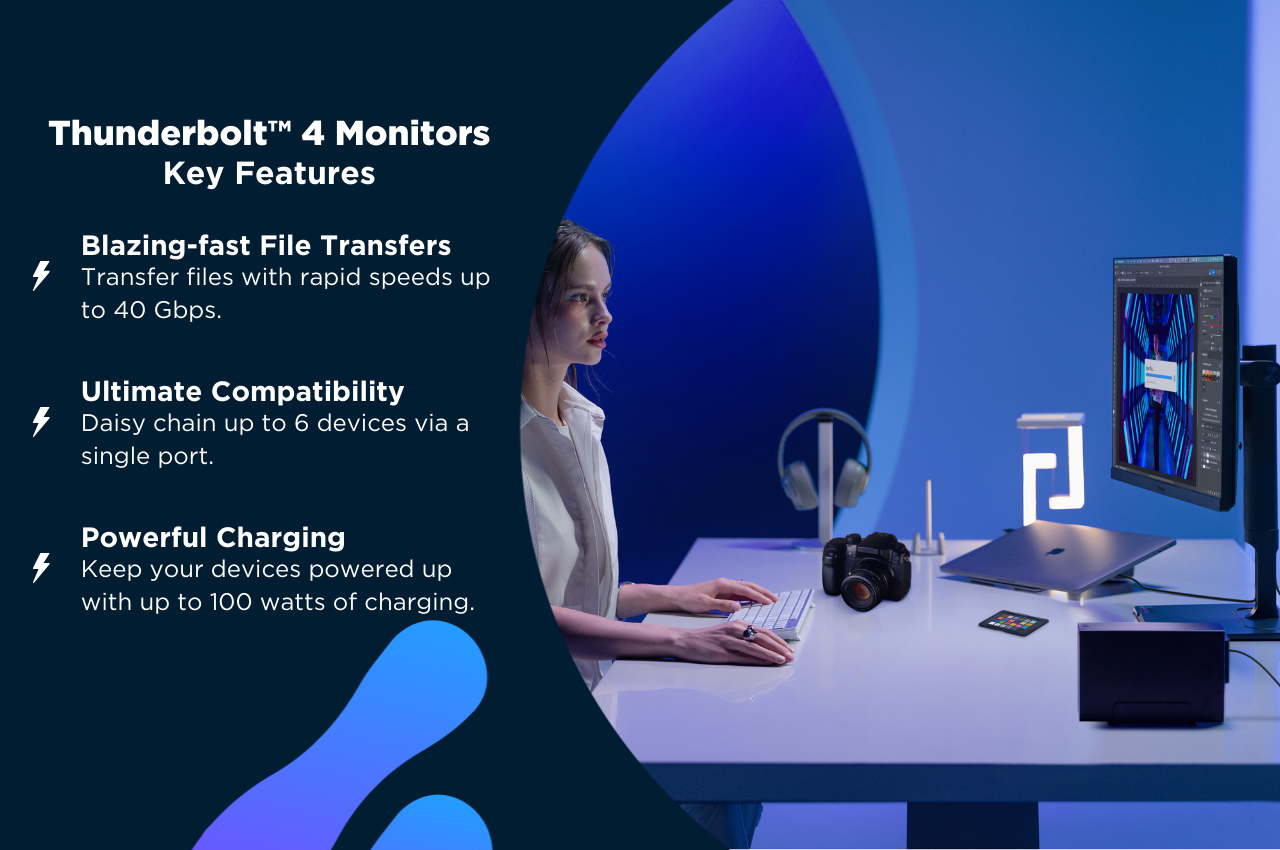
- Photographers: Thunderbolt monitors’ ultra-fast data transfer—up to 40 Gbps—allows photographers to quickly transfer large volumes of high-resolution RAW images, minimizing downtime during shoots.
- Videographers: These monitors enable real-time editing of 4K or 8K footage by connecting directly to external RAID arrays, making them essential in post-production workflows.
- Graphic Designers: Unlike standard monitors, Thunderbolt displays carry both display and high-speed data signals. This lets you daisy-chain devices like external SSDs, drawing tablets, and additional monitors directly through your screen to eliminate desk clutter.
- 3D Modelers: For architects and animators, Thunderbolt’s bandwidth supports external GPUs, drastically reducing rendering times for complex projects.
- Engineers: In CAD design, Thunderbolt monitors enable quick access to detailed models of machinery or infrastructure, especially when connected to ultra-fast NVMe storage solutions within Thunderbolt enclosures.
- Researchers: Researchers can daisy-chain an additional 4K monitor, enabling more efficient visualization and analysis of large data sets—essential for tasks like simulations and data modeling.
Thunderbolt vs. DisplayPort: Which Is Better?
While standard DisplayPort connections can handle high-resolution video output, they carry video and audio only, lack native macOS support for multi-monitor daisy chaining and require separate cables for laptop power and peripherals. Thunderbolt remains the clear winner if you need plug-and-play multi-screen setup across Mac and PC, high-speed data passthrough, and up to 100W laptop charging over a single cable.
However, if you are building a dedicated desktop PC workstation that only needs raw display signals without docking or charging features, standard DisplayPort is still a reliable, cost-effective option.
What to Look for in a Thunderbolt Display
These monitors go beyond being just displays with a premium connector. Designed to meet the rigorous demands of professionals, they pair seamlessly with MacBooks as well as high-end Windows PCs. Here’s a closer look at what to look for when buying a Thunderbolt monitor:
Thunderbolt 4 vs. Thunderbolt 5
When shopping for a Thunderbolt display, pay attention to the generation of Thunderbolt technology it uses. Thunderbolt 4 is the established industry standard for high-performance displays, delivering 40 Gbps of bidirectional bandwidth. This is more than enough data pipeline to comfortably drive dual 4K screens at 60Hz or a single high-refresh-rate 5K display while simultaneously passing high-speed USB data and charging your laptop.
For extreme workflows, Thunderbolt 5 pushes bandwidth to 80 Gbps, making it tailored for multi-stream 8K video editing or triple high-refresh 4K monitor setups. However, for the vast majority of creative, business, and daily workstation tasks, Thunderbolt 4 remains the sweet spot, offering reliable speed, universal cross-platform compatibility, and lower hardware costs.
Dual Ports for Daisy Chaining
Not all Thunderbolt monitors support daisy chaining. Buyers looking for multi-screen Mac setups or full dock replacements must specifically look for models with a dedicated downstream Thunderbolt port, rather than just a single upstream connection.
An upstream port connects directly to your computer to send video signals and deliver power, while a secondary downstream port acts as a passthrough, allowing you to plug a second Thunderbolt display directly into the back of your monitor. Without a downstream port, extending your desktop across multiple screens requires running an extra cable to your laptop.
[embedded content]
Integrated Docking Station
A premium Thunderbolt display should double as a complete desktop hub, allowing you to eliminate standalone Thunderbolt docking hardware entirely. Look for monitors that offer comprehensive built-in peripheral connectivity right on the back panel.
Key docking features include an integrated RJ45 Ethernet port for stable, high-speed wired internet connections, alongside multiple downstream ports for webcams, keyboards, and high-speed external drives. With an integrated docking display, plugging a single Thunderbolt cable into your laptop instantly connects your screen, power, wired network, and all your desktop accessories at once.
100W Power Delivery
Power delivery determines how effectively the monitor can charge your laptop through the main Thunderbolt cable. While the Thunderbolt specification guarantees basic charging, many mid-range displays max out around 60W to 85W.
High-performance laptops consume significant power during heavy rendering, exporting, or multitasking. A 100W connection ensures your machine stays fully charged under heavy workloads without draining your battery or forcing you to plug in its original power brick.
How to Build a Thunderbolt Workstation for Mac
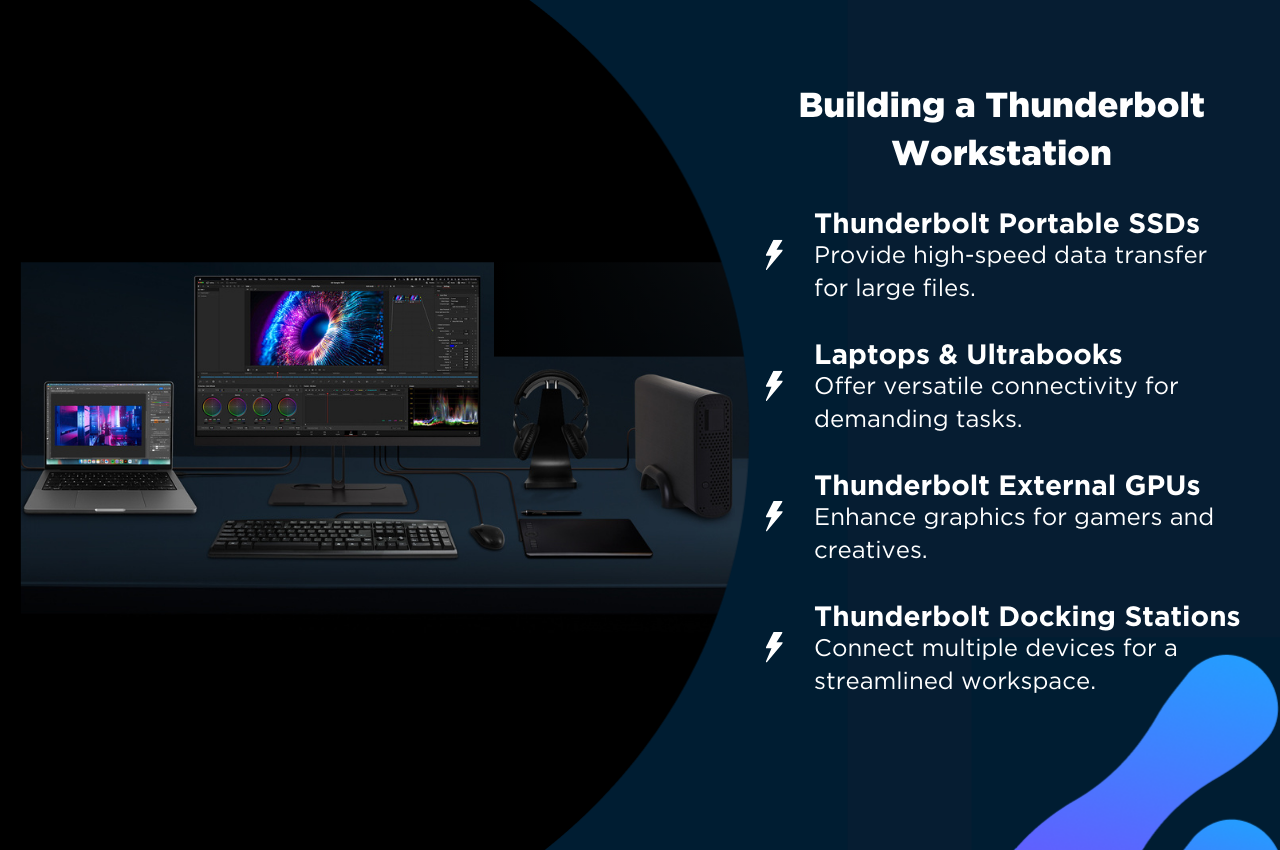
If you decide to go with a Thunderbolt monitor for your Mac setup, make sure to pair it with the right peripherals to maximize its potential:
- External GPUs: Thunderbolt-enabled eGPUs supercharge graphics performance, making them essential for gamers, video editors, and 3D rendering professionals.
- Portable Storage Devices: External SSDs with Thunderbolt ports offer lightning-fast data transfer speeds, perfect for quickly backing up large files or transporting critical data on the go.
- Docking Stations: Thunderbolt docks connect multiple peripherals through a single port, helping you declutter and transform your workspace into an efficient, streamlined hub.
ViewSonic Thunderbolt Monitors for Mac
ViewSonic’s ColorPro monitors with Thunderbolt ports are designed for creatives and high-performance, multi-monitor setups. These displays combine factory-calibrated color accuracy with high-bandwidth workstation connectivity perfectly suited for Mac setups.
Every Thunderbolt 4 display in the ViewSonic ColorPro lineup delivers three things:
- Dual Thunderbolt 4 Ports (Upstream + Downstream): Every model features two dedicated ports. The upstream port connects to your computer, while the downstream port enables single-cable daisy chaining for a second 4K or 5K display on both macOS and Windows, or high-speed passthrough for extra productivity while keeping a tidy desktop.
- Full 100W Power Delivery: The displays provide up to 100W of power delivery over the main upstream cable across its entire Thunderbolt 4 family. This guarantees that power-hungry workstation laptops stay charged during heavy rendering and multitasking workloads.
- High Resolution: With resolutions ranging from 2K-5K, each model delivers crisp, clear images for precise creative work.
To accommodate a wide variety of workstation requirements, select models within the lineup offer additional features, such as integrated docking functionality and built-in hardware KVM switching to control two PCs with a single set of peripherals.
|
VP2776T-2K 2K QHD IPS Monitor with 100W Thunderbolt 4, RJ45, sRGB 100% and HDR400 |
VP2488-4K 4K UHD Mac-Compatible Monitor with 100W Thunderbolt 4, USB C, and DCI-P3 Color Gamut |
VP2788-5K 5K Mac Compatible Monitor with 100W Thunderbolt 4, USB-C, and DCI-P3 Color Gamut |


Final Thoughts
By choosing a Thunderbolt monitor, you’re not just upgrading your screen, you’re investing in a more powerful setup that will streamline your workflow. By combining ultra-fast 40 Gbps data transfers, pristine video output, and robust power delivery into a single cable, these displays eliminate the clutter of traditional multi-cable workstations.
Whether you need dual-port daisy chaining to run multiple displays, high-wattage 100W Power Delivery to keep power-hungry laptops charged, or built-in docking features like Ethernet and KVM switching, identifying your specific workflow requirements ensures you select the right Thunderbolt display.
Experience the power of Thunderbolt 4 for yourself with a Thunderbolt monitor from ViewSonic. For more tips on streamlining your workspace, check out our article on unlocking productivity with docking monitors.
Frequently Asked Questions About Thunderbolt Monitors
Here are answers to some of the questions we receive the most about Thunderbolt monitors.
Beyond your main laptop, a Thunderbolt monitor with a downstream port or built-in dock acts as a central workspace hub. Devices like an iPad Pro or Microsoft Surface plug directly into the display for instant video, audio, and charging. For a secondary computer or desktop PC, connect via HDMI or DisplayPort and use the monitor’s built-in KVM switch to share one keyboard and mouse across both systems. Any external drives, webcams, or Ethernet cables connected to the monitor’s ports automatically route to whichever device is active.
A single Thunderbolt 4 port supports up to two 4K displays at 60Hz or one 8K display at 60Hz. You can daisy-chain a second monitor directly to your primary display’s downstream port or use a Thunderbolt hub.
Yes, as long as your Windows PC has a Thunderbolt or USB4 port. On PCs with standard USB-C (DisplayPort Alt Mode) ports, you’ll still get video and basic USB connectivity, but data speeds will be capped at USB-C standards rather than full 40 Gbps.
Yes, a Thunderbolt monitor can charge your Mac. Look for a Thunderbolt monitor with up to 100W power delivery to ensure even high-performance laptops like the MacBook Pro stay fully powered under heavy workloads.